Our social:

Latest Post

Saturday, 12 March 2016

How to Install WordPress on Your Domain

This is a quick WordPress Installation guide with screenshots to get your blog up and running quickly. After reading this WordPress Installation guide you will know exactly how you can install WordPress quickly on your domain in a few steps.
A detailed WordPress Installation Instruction can be found atWordPress.org too. I install WordPress frequently for my friends and myself and I find the detailed installation instructions on WordPress.org to contain too much details for me, so I needed a cut down and more streamlined version of WordPress installation instructions and hence the birth of this tutorial.
This WordPress installation guide mainly takes into account the most common web hosting solution (example: access to ‘cPanel’). I install WordPress this way because it allows me to work on concurrent installation related tasks at the same time (e.g. Add database while the WrodPress files are being uploaded to my server) resulting in a reduced total WordPress install time.
You can also use the one click WordPress install option via cPanel if your host offers it.

WordPress Installation Steps

Step 1: Transfer the WordPress files to your web server

  • Download and unzip the latest WordPress package from WordPress Download Page.
  • Upload the WordPress files (all the directories and files that is inside the extracted WordPress Directory) to the root directory (In most cases this will be the ‘public_html’ directory) of your web server or to a sub directory if you want to host your blog in a sub directory of your site. I use FileZilla (free ftp software) to upload my files but any ftp program can be used. You can also check the video tutorial on how to use FileZilla.
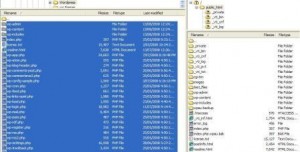
    'ftp' WordPress files to the web server
    ‘ftp’ WordPress files to the web server

Step 2: Add Database and User for WordPress

  • Log in to your cPanel. (http://www.your-site.com/cpanel)
  • Click MySQL Databases.
    MySQL Database
    MySQL Database
  • Create a user for WordPress from the Users section:
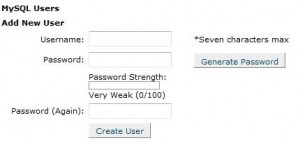
    MySQL Database User Creation
    MySQL Database User Creation
    1. Choose a user name (e.g. ‘user’) and enter it in the User name field.
    2. Choose a password for this user. Write down this password on a piece of paper or on a text file.
    3. Click Add User.
    4. Click on ‘Go Back’ to go to the MySQL Database Page Write down this user name and password on a piece of paper or on a text file.
  • Create a database for WordPress from the Databases section.
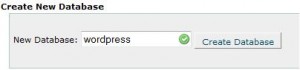
    MySQL Database Creation
    MySQL Database Creation
    1. Enter a name for your WordPress database (e.g ‘wordpress’) and click ‘Create Database’.
    2. Click on ‘Go Back’ to go to the MySQL Database Page.
  • Go to the ‘Add User To Database’ section on this page and select the Database and user name you just added from the drop down menu if not selected already.
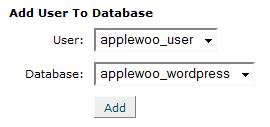
    Add WordPress User to the Database
    Add WordPress User to the Database
  • Click ‘Add’.
  • Select “ALL PRIVILEGES” and click ‘Make Changes’.
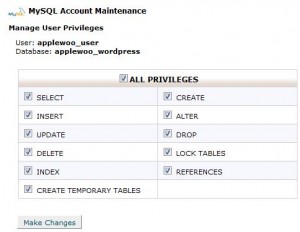
    WordPress User's Privilege Settings
    WordPress User
  • Click on ‘Go Back’ to go to the MySQL Database Page.
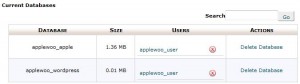
    List of Current Database and Users
    List of Current Database and Users
Note down the WordPress Database and user name that you just created from this (MySQL Database) page. There may be a prefix present on your Database and user name e.g “applewoo_wordpress”, “applewoo_user”, this is to ensure that no name conflicting occurs on a shared hosting.

Step 3: Edit the Configuration File

  • Rename the “wp-config-sample.php” file to “wp-config.php”.
  • open the “wp-config.php” in your favorite text editor and update the DB_NAME, DB_USER, DB_PASSWORD fields with the details captured in step 2. It should look similar to the following:

// ** MySQL settings ** //
define('DB_NAME', 'applewoo_wordpress'); // The name of the database
define('DB_USER', 'applewoo_user'); // Your MySQL username
define('DB_PASSWORD', 'myPassword'); // ...and password
define('DB_HOST', 'localhost'); // 99% chance you won't need to change this value
define('DB_CHARSET', 'utf8');
define('DB_COLLATE', '');
  • Upload this updated “wp-config.php” file to the root directory (‘public_html’) of your web server or to the sub directory if you are installing WordPress in a sub directory of your site.

Step 4: Install WordPress

  • Run the WordPress Installation script by visiting the ‘wp-admin/install.php’ link of your site. Basically enter “http://www.your-site.com/wp-admin/install.php” in the address bar of your web browser and follow the one click installation process.
WordPress should now be installed and ready to go. Log in to your WordPress admin section by visiting the ‘wp-admin’ link of your site using the user name and password sent to your inbox.
WordPress Login Screen

Total Expected WordPress Install Time

The total WordPress install time will vary depending on your internet connection speed but below is a graph showing the average install time for my WordPress Install.
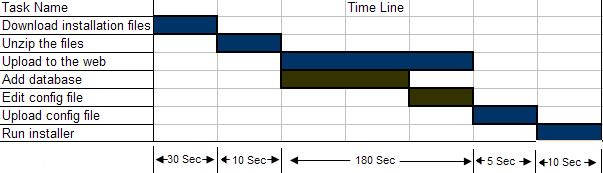
Total WordPress Install Time
The WordPress installation is fairly straight forward but If you are having a problem then leave a comment below and I will try to answer if I can.

Good Domain Name Picking Tips for Your Blog Setup


The first thing that comes to my mind when setting up a blog is getting a good domain name. In this article, I have described why I think it is important to choose a good domain name upfront. I have also explained how you can pick a good domain name for your blog or website followed by some domain name picking tips and general outlines (“dos” and “don’t s”).

Why pick a good domain name for your blog

Apart from many other reasons, you want to pick a good domain name for your blog/site from the start, because most likely you will be stuck with that domain name for the rest of the blog’s life. You may change the domain hosting provider from time to time depending on how reliable your current domain hosting provider is but the domain name will remain the same.
The reason I say that you will be stuck with that name is mainly because changing the domain name is kind of like starting all over again from the start and you don’t want to do that once your site is established and getting regular traffic and you have built up a brand. You will start with ‘0’ Google Page rank and will have to work your way up again if you do change the domain name in the middle. The Alexa rank and other ranking metrics will drop too because all these rankings are associated with the domain name. So the bottom line is that you want to pick a good domain name that you can live with from the start. Now, the question is how?

How to pick a good domain name for your blog

I don’t think that there are any hard rules as to how a domain name should be picked, so use the following points as a guideline for choosing your domain name:
  • Use Keywords: Use keywords in the domain name that describe your site (if it makes sense). The domain name should suggest the nature of your product or service. A good domain name describes exactly what the site is about. It is important for a visitor to get an idea of what the website is about just by looking at the domain name. For example, if your site is about antiques and collectibles then try to get a domain name like “www.antiques.com” or “www.collectibles”.com not “www.foobar.com”.
  • Easy to remember: A domain name should be easy to remember becuase your visitors will want to type in the domain name in the web browser for revisits and if they can’t remember the domain name then you run the risk of losing potential traffic. It is also easier to spread the word of mouth when the domain name is easy to remember.
  • Keep the domain name short: A domain name should be short with less than 10 characters. It also helps the “Easy to remember” point when the name is short. Although, these days it’s incredibly hard to get domain names that are short. Basically you don’t want to end up with a super long domain name like “www.thisisareallybadexampleofdomainname.com”. When the name gets too long it gets confusing and the name can be easily mistyped in the browser.
  • Use hyphens if needed: Use hyphen (-) in between the words if needed for your domain name. If “www.domainname.com” is taken then you can try “www.domain-name.com”. Using hyphen(s) in between the words sometimes help to improve readability. It can also help in the Search engine rankings.
  • Make it easy to type: Try to get a domain name that is easy to type (if you can). Easy to type domain names are good for branding.
  • Think Local: If your business is local then think about adding your region, city or state in the domain name (example: VegasAccounting.com). Only do it if it makes sense though.
  • Domain name extension: Try to get the “.com” Top Level Domain (TLD) extension as it is the most popular. It is also the most widely accepted domain name extension. When people think about an website, their mind automatically pictures “domain-name.com” as the address. You can also use the “.net” and “.org” extensions if you cannot find a “.com” extension.

Should You Use YourName.com or YourBusinessName.com?

If the main commodity of your business is YOU then use yourname.com as your domain name. This works out good if you are an author, speaker, coach etc.
If your business is based around a product or a service then use yourbusinessname.com or your productname.com.

Some General things to be aware of

  • Legal conflicts: Spend a bit of time searching around to make sure you are not choosing a domain name that is similar to an already established rival. You don’t want to spend time building your blog only to find out that someone else has a similar website and wants to sue you.
  • Avoid Copyright Issues: Make sure the name you are going to use is not copyrighted.
  • Be aware of the scammers: There are a lot of scammers around, so try to make sure you buy your domain name from a registrar who is in the ICANN’s (Internet Corporation for Assigned Names and Numbers)accredited registrar’s list.
Go Daddy offers cheap domain name registration. Try not to buy hosting from them though… read the following article before you signup for a hosting account. Name.com also offers cheap domain name registration.
As I have mentioned earlier that these rules are not set in stone. Don’t be afraid to add your own flavor. Use common knowledge and be sensible. Try your best and get creative. What is your best tip in choosing a good domain name? Feel free to leave your suggestions or comments below.

How do I Start a Blog and Make Money Online


This is a step by step and easy to follow guide that will help you setup your own blog from the start. This guide is not to motivate someone to start blogging. It is best suited for someone who already made the decision to start a blog and need some step by step direction of the whole process.

Who Should Use This Guide?

It goes without saying that the following information is for those that know that hard work generates reward.
This guide is intended for anyone who is looking for an answer to any of the following questions:
  • how do I setup a blog?
  • how to start a blog and maintain it?
Now, starting a blog is easy but in order to be able to successfully monetize the blog, you need to establish the blog. In this guide, I have also covered the topics that help you establish your blog so you can monetize it.
There is a lot of good content to go through, so it is a good idea to bookmark this page so you can come back to it later and go over the content at your own pace.